Combine Copilot Retrieval API, M365 Agents SDK and AI Foundry Agent Service
The complete example is available on GitHub: https://github.com/FranckyC/m365-agents-sdk-samples/tree/main/CopilotRetrievalAPIDemo
This article describes how to use the Microsoft 365 Agents SDK, AI Foundry Agent Service and the Copilot retrieval Graph API. Before digging into the details , let’s start with some definitions about these tools:
What is the Azure AI Foundry Agent Service?
The Azure AI Agent Service is a component of the broader Azure AI Foundry platform, which enables you to manage all your AI assets—such as models, data, and test workloads—within a unified workspace organized into projects. From a technical standpoint, the Agent Service acts as a wrapper around the OpenAI Assistants API, offering both a configuration UI (similar to Copilot Studio) and SDK options. Through these, you can define your agent’s model (deployed within your AI Foundry resource), instructions, tools, and knowledge sources.
Unlike Copilot Studio, however, the Agent Service does not integrate with any prebuilt user-facing interfaces (such as Teams or Microsoft Copilot). It is the developer’s responsibility to create and integrate such interfaces using the available SDKs for Node.js, C#, or Python.
In essence, the Agent Service provides a streamlined backend for building and managing AI agents without relying on external orchestration frameworks like LangChain or Microsoft Agent Framework . It is purpose-built for enterprise-grade deployments, supporting capabilities such as private network isolation, governance, guardrails, and policy controls—ensuring secure and compliant integration within organizational infrastructure.
What is the Copilot Retrieval API?
The Copilot Retrieval API is a new Microsoft Graph API that enables access to content from the Microsoft 365 semantic index — the same index used by Copilot for Microsoft 365 and Copilot Studio as their underlying knowledge source. Before this API, there was essentially no reliable or secure way to access data from this index, making it difficult to implement Retrieval-Augmented Generation (RAG) patterns using Microsoft 365 content. This limitation was particularly frustrating, as organizations couldn’t fully leverage their own Microsoft 365 data for custom Copilot-based solutions, even with paid licenses. Alternative approaches, such as indexing Microsoft 365 data (e.g., SharePoint) into Azure AI Search, were far from ideal — they introduced additional costs, lower security, significant limitations, and heavy maintenance requirements.
The version 1 of the Copilot Retrieval API has now been officially released and is generally available, meaning it’s safe and ready for use in production environments.
What is the Microsoft 365 SDK?
The Microsoft 365 SDK is essentially the evolution of the Bot Framework v4, designed to simplify the development of custom agent solutions for Microsoft 365 — particularly for Teams and Copilot. Unlike frameworks such as the Microsoft Agent Framework or LangChain, the Microsoft 365 Agents SDK is not an LLM orchestration framework. Instead, it focuses on streamlining integration with Microsoft 365 services for agent implementations, while still relying on the Azure Bot Service behind the scenes.
As noted by Andrew Connell here, the SDK is still very new, changes frequently, and currently lacks comprehensive documentation and guidance. Many of the available samples and examples overlap with older Bot Framework content, which often leads to confusion among developers — especially when dealing with common scenarios such as authentication handling.
Why combine these three?
This combination is particularly effective for building enterprise-grade agents that meet the following criteria:
- Designed to be consumed through built-in Microsoft 365 channels such as Teams and Copilot.
- Able to leverage pre-indexed Microsoft 365 data from native sources (e.g., SharePoint, OneDrive) or line-of-business (LOB) systems via Graph connectors, ensuring compliance and security.
- Provide control over AI models, including fine-tuning capabilities.
- Offer granular control over testing processes and analytics.
- Support environmental consistency across development, UAT, and production through programmatic provisioning with Bicep templates.
- Enable private network isolation within Azure.
- Allow centralized management of a fleet of dedicated company agents through a shared infrastructure.
- Remain flexible and extensible, allowing the solution to evolve without running into hard limitations (e.g., data sources, tools, or connected agents).
From my recent experience, I adopted this approach as a more robust alternative to Copilot declarative agents, which currently lack several key enterprise features, such as:
- No efficient or automated way to measure RAG performance — it requires a manual and cumbersome process.
- Lack of analytics and insights for stakeholders, making it difficult to monitor agent usage.
- No agent-to-agent communication capabilities.
- Limited feedback control — for instance, thumbs-up/down feedback is sent to Microsoft, not your organization.
- Performance issues when using API plugins.
While declarative agents can still be useful in certain scenarios, their value proposition within the Microsoft 365 Copilot extensibility ecosystem now feels somewhat limited compared to more mature and flexible alternatives such as Copilot Studio or Azure AI Foundry.
This articles will describe step by step how to achieve a minimal functional solution for this use case. Here are the high level steps we cover:
- Configuring infrstructure prerequisites for Single Sign On authentication and Bot configuration.
- Creating and configuring new porject with the Microsoft 365 SDK
- Integrate with AI Foundry Agent Service
- Register the Copilot Retrieval API as a tool
- Manage agent answers citations
Create and configure Entra ID app for SSO
The new Microsoft 365 Agents SDK makes the authentication scenario easier for developers. However, from a documentation perspective, it quite (very) tricky to understand as it is kind of a black box now. In addition, the several samples you’ll find online won’t help to understand this new process (this one using the .Net M365 Agents SDK, but the old SSO way, same here but with Node.js or this one using the new way but outside of any context or detailled explanations how this works or how you can troubleshoot if something wrong).
To be short: for those used to configure the SSO mechanism with bot dialogs (ex TeamsFxSsoPrompt), providing dedicated HTML pages to handle authentication flow start/end using the Teams-js library: this is not required anymore. Despite this approach still works for Teams channel, it won’t be supported in the Copilot experience (i.e. https://m365.cloud.microsoft/copilot for instance). The Microsoft 365 Agents SDK now relies on Azure Bot OAuth authentication and will handle all these things for you, on both Teams and Copilot experiences.
First register a new Entra ID application. This application will be used to authenticate users with SSO in the agent. Make sure your app is single tenant (i.e. for the prupose of that example).
Add and grant the following delegated API permissions for the Microsoft Graph API:
ExternalItem.Read.All: read Graph connectors dataSites.Read.All: read SharePoint/OneDrive contentopenidprofile: user sign in permissions.
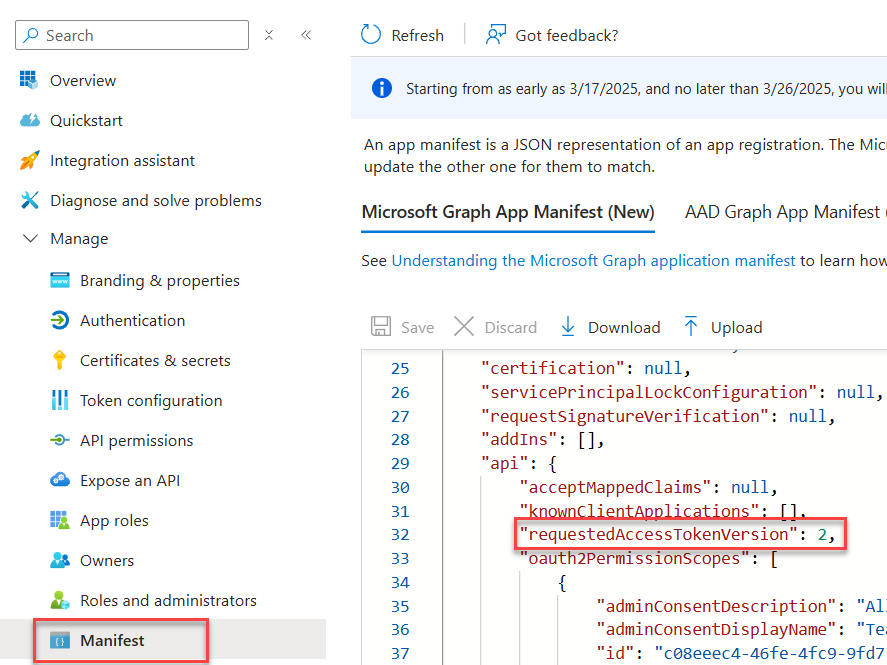
- In the app manifest, make sure the
requestedAccessTokenVersionproperty is set to 2:
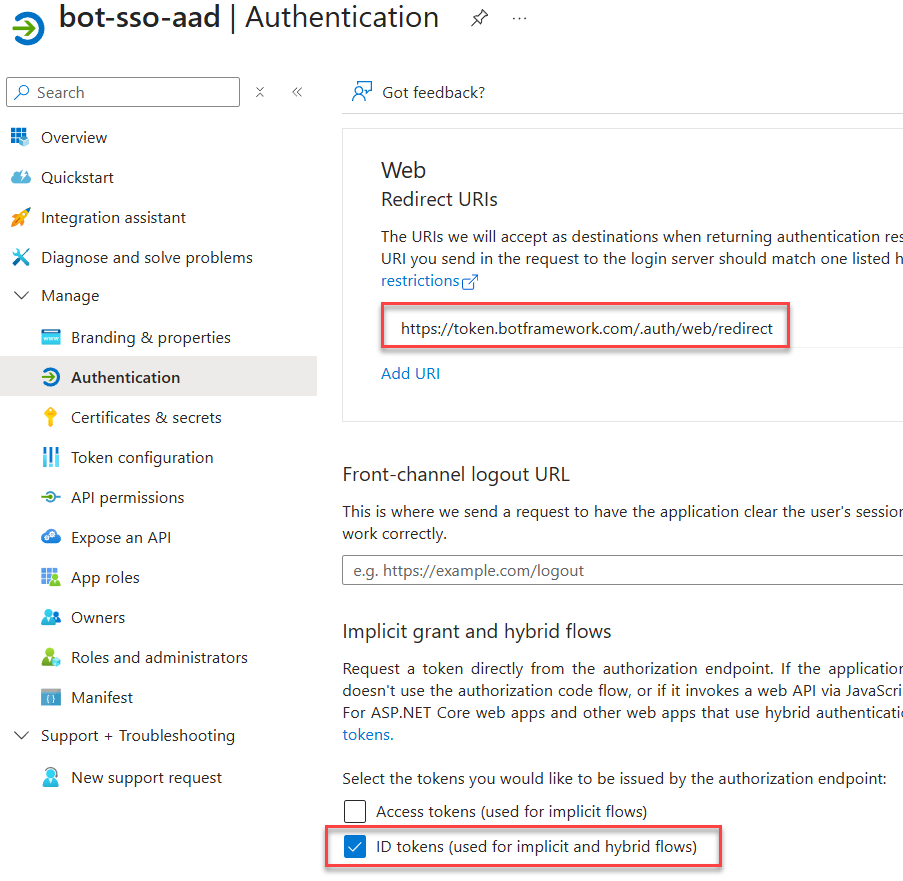
- In “Authentication” add a new web platform and the redirect URL
https://token.botframework.com/.auth/web/redirect. Make sure the “ID tokens” option is checked.
The next step is to setup the project using Microsoft 365 Agents SDK.
Setup agent with Microsoft 365 Agents SDK
- In Visual Studio code, create a new project “Custom Engine Agent/Basic Custom Engine Agent” with the Microsoft 365 Agents SDK (leave blank Azure OpenAI key as you won’t need it):
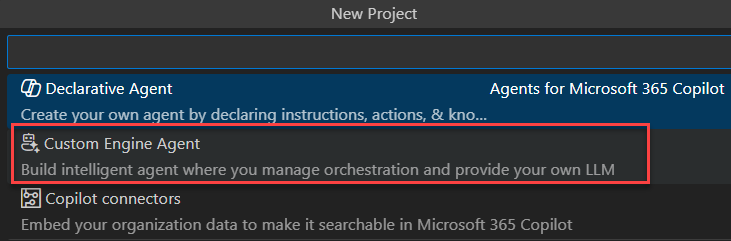
You’ll need the pre-release version of the Microsoft 365 Agent SDK Visual Studio Code extension
Add the following dependencies to package.json and run npm i to install them:
"dependencies": {
    "@azure/identity": "^4.8.0",
    "@microsoft/agents-hosting-express": "1.0.15",
    "@microsoft/agents-activity": "1.0.15",
    "@azure/ai-agents": "1.1.0",
    "@azure/ai-projects": "1.0.1",
    "@microsoft/microsoft-graph-client": "3.0.7"
}
- Update
appPackage/manifest.jsonto updatevalidDomainsproperty with the following values:
{
    "$schema": "https://developer.microsoft.com/en-us/json-schemas/teams/v1.23/MicrosoftTeams.schema.json",
    ...
    "validDomains": [
        "token.botframework.com",
        "login.microsoftonline.com"
    ]
}
- From Visual Studio Code, select the
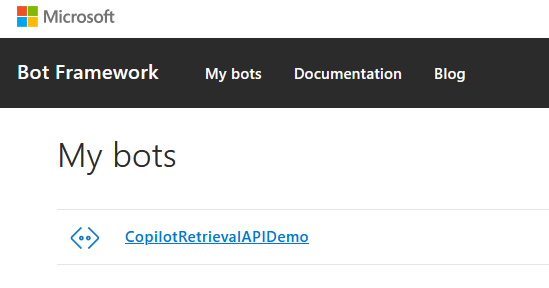
Debug in Teams (Edge)debug configuration and press F5 to run the local debugguer (make sure you are connected to the right tenant in the Microsoft 365 Agents SDK extension). This will create a new bot registration in the Bot Framework developer portal https://dev.botframework.com/bots:
- Migrate the bot to Azure
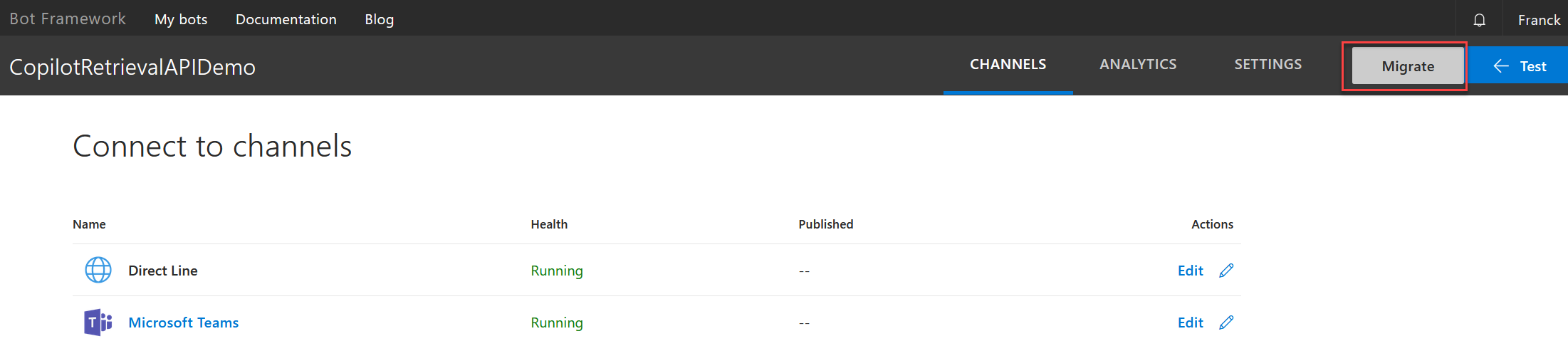
Because bots registered in the developer portal don’t support OAuth connection creation, you need to migrate it to Azure. Go to https://dev.botframework.com/bots and login with the same account as the M365 Agents SDK extension. Select your bot and click on “Migrate” to create a new Azure Bot instance in Azure.
When creating a new Azure bot in. Azure , you have to select the type of app according to your environement (dev/prod). The choice you make here will have an incident on how you should configure your environment variables in your bot project➡️ In development scenario, you should use “Single tenant”. In this scenario, the communication between your application and the bot service witll be made through client id/client secret.➡️ In production scenario, you should use “User-Assigned Managed Identity”: In this scenario, the communication between your application and the bot service will be >made through an user assinged managed identity (typically attached to the Azure > App Service used to host your application avoiding the need to managed secrets). You can’t use this option in local development scenario.
Migrating from the developer portal will always create a bot with client id/secret.
- Configure OAuth connection on Azure bot
In bot configuration in Azure, create a new OAuth connection with these settings:
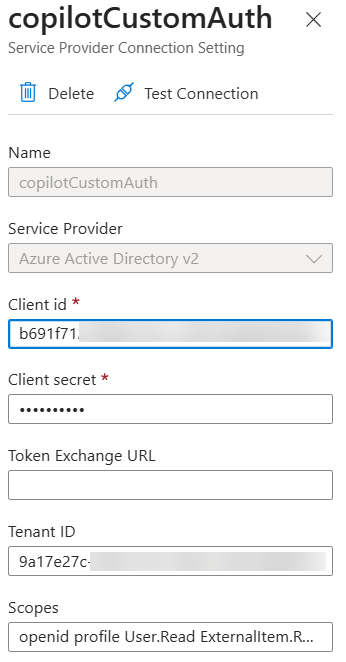
- Name:
copilotCustomAuth. This name is quite important as it will be used in your agent code. - Service Provider:
Azure Active Directory v2 - Client id:
<client id form previous step> - Client secret:
<client secret from previous step> - Token Exchange URL:
<leave blank> - Tenant ID:
<tenant id from previous step> - Scopes:
openid profile Sites.Read.All ExternalItem.Read.All(same as defined in the Entra ID app).
- In the
.localConfigs, ensure the following environments variables are correctly set. These values will be used for the SSO authentication in the bot code.
clientId=<client id of the Entra ID app used for the Bot (not the SSO app)>
tenantId=<tenant id of the Entra ID app used for the Bot (not the SSO app)>
clientSecret=<client secret of the Entra ID app used for the Bot (not the SSO app). Generate a new one>
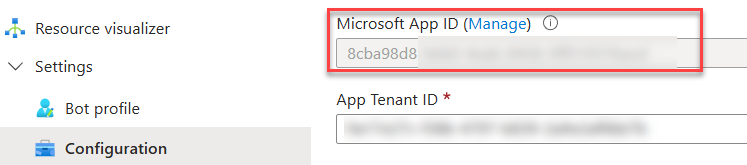
Then stop the debugguer to update the bot code.
- In
agent.ts, replace the content by a new agent class and configure authentication settings to use SSO:
Show code
export class CustomAgent extends AgentApplication<TurnState> {

  constructor () {
    super({
      storage: new MemoryStorage(),
      authorization: {
        graph: {
          text: 'Sign in with Microsoft Graph',
          title: 'Sign In'
        },
      }
    })
  }
}
The documentation doesn’t make this very clear, but the graph key requires an environment variable to be defined using the exact format:
<key>_connectionName=<name of the connection in the Azure Bot instance>
In this example, the variable should be:
graph_connectionName=copilotCustomAuth
When debugging your agent locally, you must define this variable in .localConfigs file corresponding to the application environement variables (accessed through process.env["var_name"]). For Azure remote testing, simply define the same variable in the web app’s environment variables.
Another important detail: the way your app connects to the bot depends on how the environment variables are configured.
- If only
clientIdandtenantIdare defined, the SDK assumes you’re using a user-managed identity for the bot connection (see explanation above). - If
clientId,clientSecret, andtenantIdare defined, the SDK will use the client ID/secret method to connect to the bot (see explanation above).
Because of this behavior, it’s important to be very careful when defining your environment variables.
- Update the
index.tsto in your and handle general errors:
Show code
import { startServer } from "@microsoft/agents-hosting-express";
import { CustomAgent } from "./agent";
import { TurnContext } from "@microsoft/agents-hosting";

const onTurnErrorHandler = async (context: TurnContext, error: Error) => {

  console.error(`\n [onTurnError] unhandled error: ${error}`);

  await context.sendTraceActivity(
    "OnTurnError Trace",
    `${error}`,
    "https://www.botframework.com/schemas/error",
    "TurnError"
  );

  await context.sendActivity(
    `The bot encountered unhandled error:\n ${error.message}`
  );
  await context.sendActivity(
    "To continue to run this bot, please fix the bot source code."
  );
};

const customAgent = new CustomAgent();
customAgent.adapter.onTurnError = onTurnErrorHandler;
startServer(customAgent)
- Once the settings are in place, you can start use authentication for agent handlers. For instance putting the
['graph']parameter to the defaultmessagehandler will perform auhentication before processing any message from the user:
Show code
export class CustomAgent extends AgentApplication<TurnState> {

  constructor () {
    super({
      storage: new MemoryStorage(),
      authorization: {
        graph: {
          text: 'Sign in with Microsoft Graph',
          title: 'Graph Sign In'
        },
      }
    })

    this._onMessage = this._onMessage.bind(this);
    this._singinSuccess = this._singinSuccess.bind(this);
    this._singinFailure = this._singinFailure.bind(this);

    this.authorization.onSignInSuccess(this._singinSuccess);
    this.authorization.onSignInFailure(this._singinFailure);

    this.onActivity(ActivityTypes.Message, this._onMessage, ['graph']);
  }

  private async _onMessage(context: TurnContext, state: TurnState) {

    try {

        let userTokenResponse;
        userTokenResponse = await this.authorization.getToken(context, 'graph');
        if (userTokenResponse && userTokenResponse?.token) {
          await context.sendActivity(`User signed in! Token is ${userTokenResponse?.token}`);
        }

    } catch (ex) {
      await context.sendActivity(`On message error. Details: ${JSON.stringify(ex)}`);
    }
  }

  private async _singinSuccess(context: TurnContext, state: TurnState, authId?: string): Promise<void> {
    await context.sendActivity(MessageFactory.text(`User signed in successfully in ${authId}`))
  }

  private async _singinFailure (context: TurnContext, state: TurnState, authId?: string, err?: string): Promise<void> {
    await context.sendActivity(MessageFactory.text(`Signing Failure in auth handler: ${authId} with error: ${err}`))
  }
}
The SDK will handle the OAuth authentication flow behind the scenes: if the user is not signed-in, the agent will send a sign-in card on the first interaction. For subsequent calls, the token will be retrieved (or renewed if expired) from the Azure Bot service token cache (where you don’t have access unfortunately).
To start the flow from scratch, you will have to logout manually:
constructor () {
    ...
    this.onMessage('/logout', this._logout);
}

...
private async _logout(context: TurnContext, state: TurnState): Promise<void> {
    await this.authorization.signOut(context, state)
    await context.sendActivity(MessageFactory.text('User logged out'))
}
- From Visual Studio Code, select the
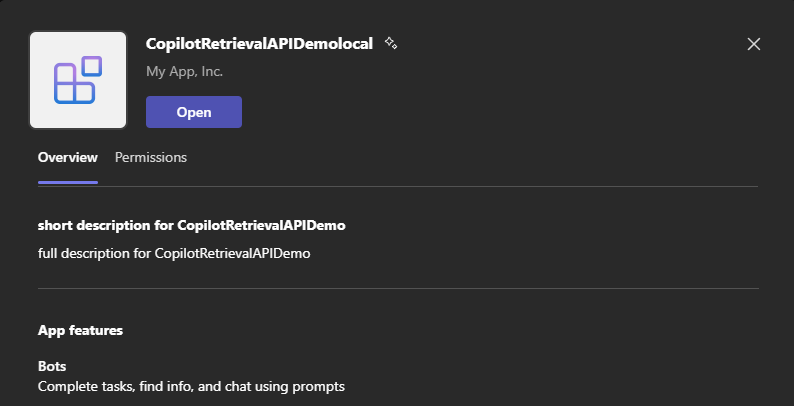
Debug in Teams (Edge)debug configuration and press F5 to run the local debugguer. You should be prompted to add the application in Teams:
On the first interaction (Copilot or Teams), you should be prompted to sign in:

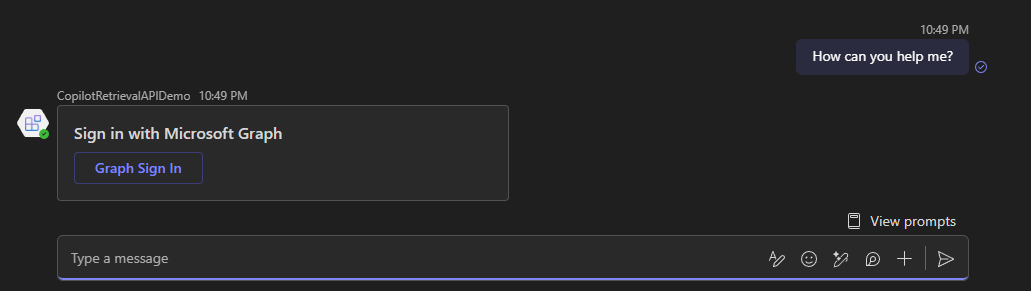
Now we have a functional authentication, we can use it to call the Copilot Retrieval API as a tool in an AI Foundry agent.
Create agent in Azure AI Foundry
- In the AI Foundry portal, create a new project and a new agent. Use a LLM model capable of function calling, like
gpt-4.1-nanoorgpt-4.1:
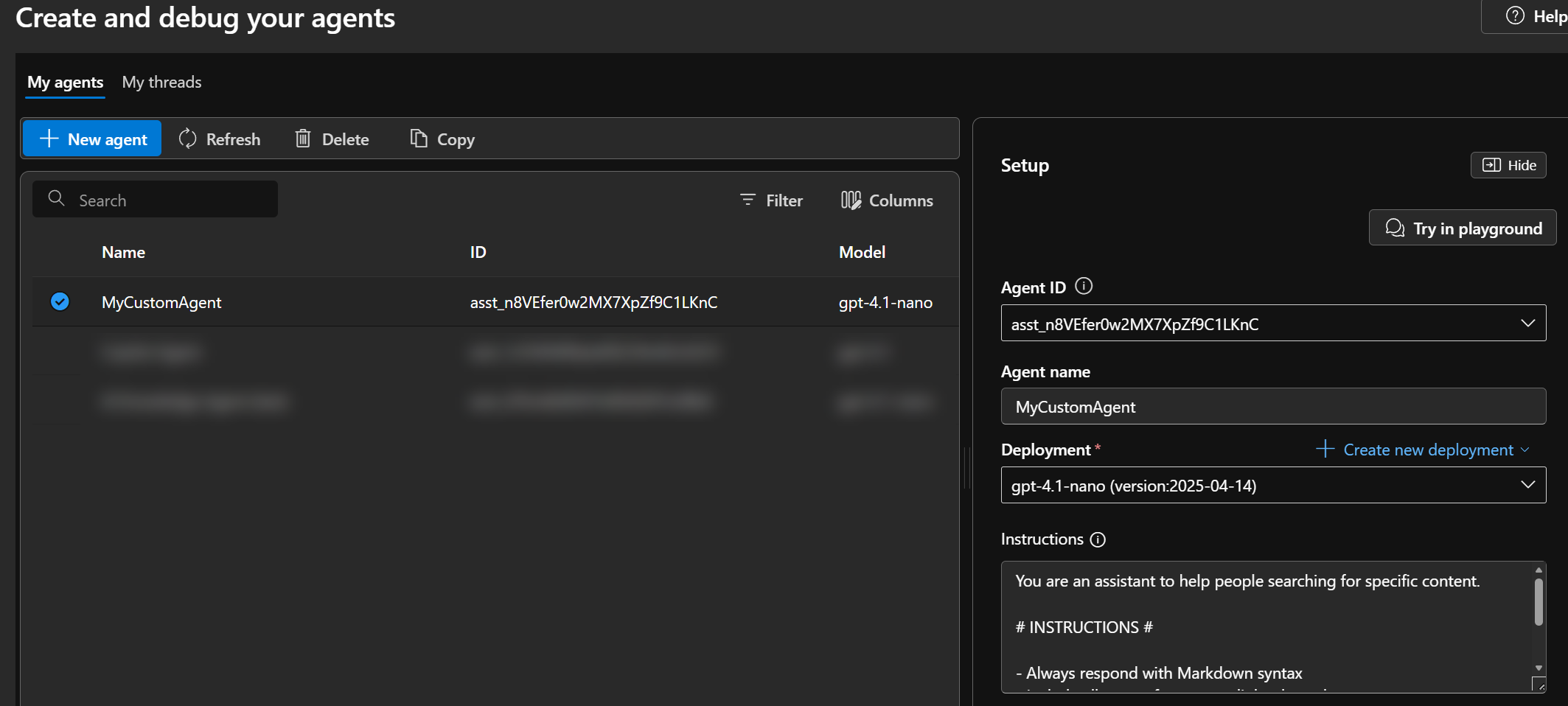
Use the following system prompt for the agent:
You are an assistant to help people searching for specific content.

# INSTRUCTIONS #

- Always respond with Markdown syntax
- Include all your references as links along the answer text.
- **NEVER** put the link references as bullet points.
- **ALWAYS** use your tool `getCopilotData` to retrieve data before answering.
Update agent code and variables to use Foundry agent
- In the
.localConfigsfile, define the following variables:
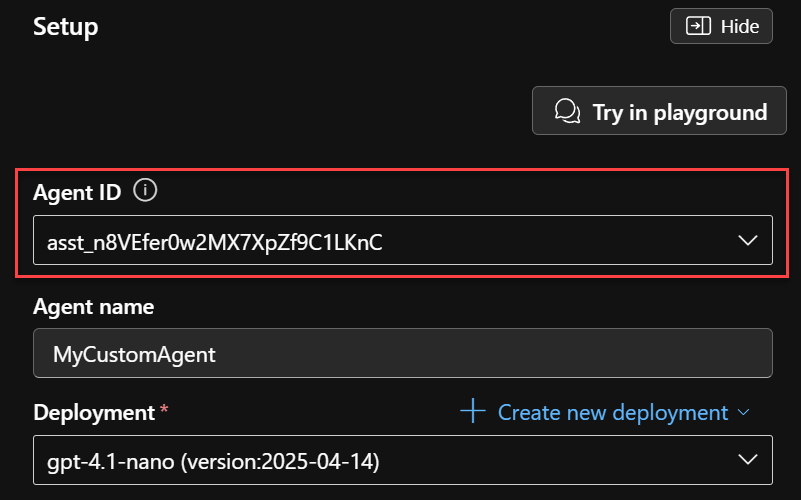
ENV_AZURE_DEPLOY_AGENT_ID=<Agent ID in AI Foundry (ex: asst_n8VEfer0w2MX7XpZf9C1LKnC)>
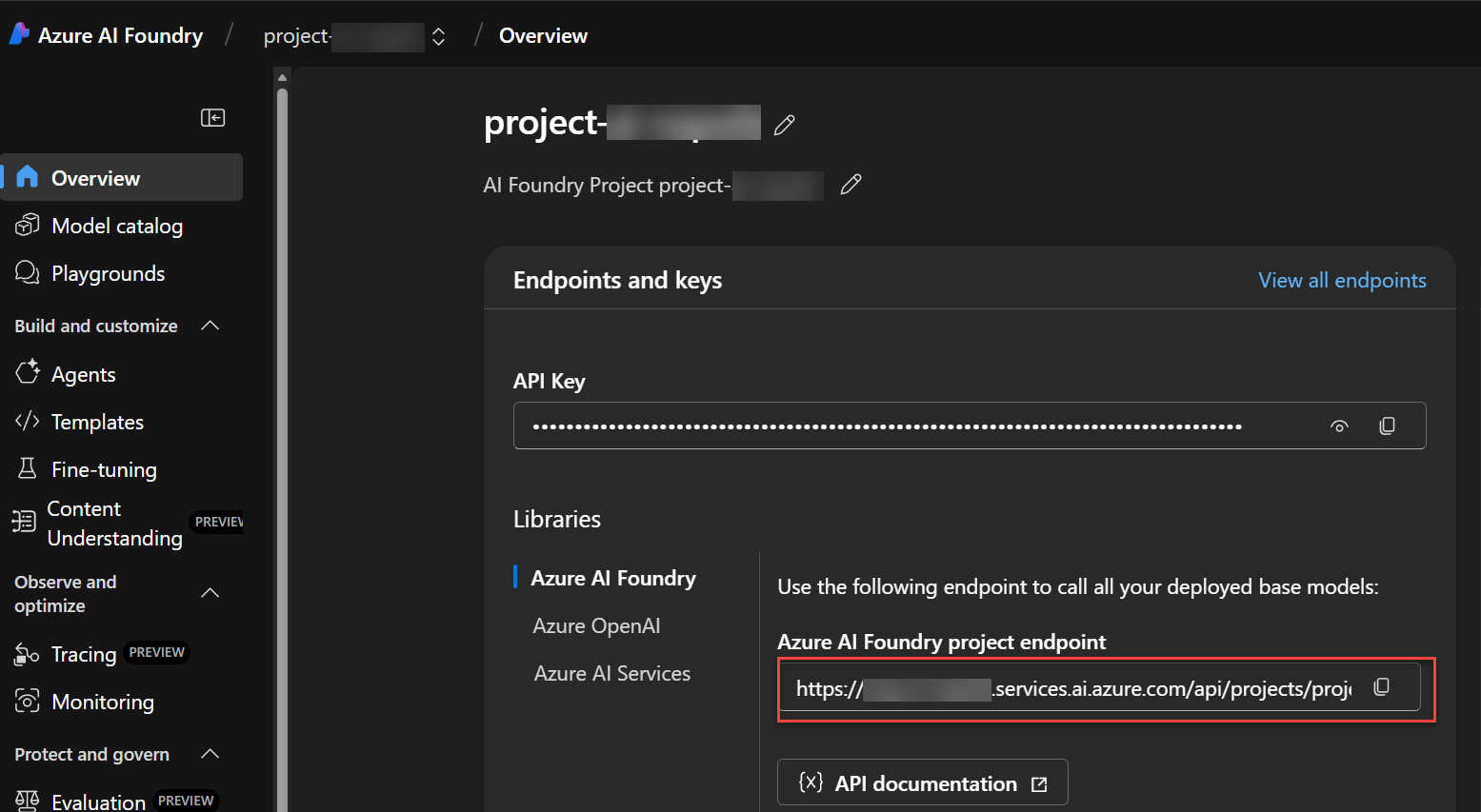
ENV_AZURE_DEPLOY_AI_FOUNDRY_PROJECT_ENDPOINT=<HTTP endpoint for the AI Foundry project (ex: https://<my-ai-foundry-resource>.services.ai.azure.com/api/projects/<my-project>)>
Where ENV_AZURE_DEPLOY_AGENT_ID and ENV_AZURE_DEPLOY_AI_FOUNDRY_PROJECT_ENDPOINT can be retrieved from the AI Foundry portal:
- Configure AI Foundry RBAC
To be able to communicate with AI Foundry in a local development scenario, you’ll need to use a SPN with client id/secret. For that purpose, you can reuse the same Entra ID application created for agent SSO. However, you’ll need to configure correct RBAC permissions Azure AI User and Cognitive Services OpenAI User in the AI Foundry resource for that SPN.
Add the following variables in .localConfigs:
ENV_AZURE_APP_CLIENT_ID=<client id of the Entra ID app used for SSO>
ENV_AZURE_APP_CLIENT_SECRET=<client secret of the Entra ID app used for SSO>
ENV_AZURE_APP_TENANT_ID=<tenant id of the Entra ID app used for SSO>
- Update the code to call the AI Foundry agent using the AI Foundry Javascript SDK.
Show code
private async _onMessage(context: TurnContext, state: TurnState) {

  try {

      let userTokenResponse;
      userTokenResponse = await this.authorization.getToken(context, 'graph');

      if (userTokenResponse && userTokenResponse?.token) {

        context.streamingResponse.setGeneratedByAILabel(true)
        await context.streamingResponse.queueInformativeUpdate('Crafting your answer...')
        await this._invokeAgent(context, userTokenResponse?.token);
      }

  } catch (ex) {
    await context.sendActivity(`On message error. Details: ${JSON.stringify(ex)}`);
  }
};


private async _invokeAgent(context: TurnContext, token: string) {

    const agentId = process.env["ENV_AZURE_DEPLOY_AGENT_ID"];
    const aiFoundryProjectEndpoint = process.env["ENV_AZURE_DEPLOY_AI_FOUNDRY_PROJECT_ENDPOINT"];

    const credential = new ClientSecretCredential(
        process.env["ENV_AZURE_APP_TENANT_ID"],
        process.env["ENV_AZURE_APP_CLIENT_ID"],
        process.env["ENV_AZURE_APP_CLIENT_SECRET"],
    );

    const project = new AIProjectClient(aiFoundryProjectEndpoint, credential);
    const agent = await project.agents.getAgent(agentId);
    const thread = await project.agents.threads.create();
    const message = await project.agents.messages.create(thread.id, "user", context.activity.text);

    console.log(`Created message, ID: ${message.id}`);

    let run = await project.agents.runs.create(thread.id, agent.id);

    // Wait for agent processing
    while (run.status === "queued" || run.status === "in_progress") {
        await new Promise((resolve) => setTimeout(resolve, 1000));
        run = await project.agents.runs.get(thread.id, run.id);
    }

    if (run.status === "failed") {
        console.error(`Run failed: `, run.lastError);
    }

    console.log(`Run completed with status: ${run.status}`);

    // Retrieve messages
    const messages = await project.agents.messages.list(thread.id, { order: "asc"});

    // Display messages
    const threadMessages = [];
    for await (const m of messages) {
        const content = m.content.find((c) => c.type === "text" && "text" in c);
        if (content) {
            threadMessages.push(m)
        }
    }

    // Get the last message sent by the agent and out put it to the user
    const agentAnswer: string = threadMessages[threadMessages.length-1].content[0].text.value;

    await context.streamingResponse.queueTextChunk(agentAnswer);
    await context.streamingResponse.endStream();
  }
Tip: You can use a managed identity associated to the bot web app to connect to AI Foundry (preferred option in production). In that case, you can use the DefaultAzureCredential class to get the corerct credentials:
Show code
const agentId = process.env["ENV_AZURE_DEPLOY_AGENT_ID"];
const aiFoundryProjectEndpoint = process.env["ENV_AZURE_DEPLOY_AI_FOUNDRY_PROJECT_ENDPOINT"];
const userAssignedManagedIdentityClientId = process.env["ENV_AZURE_DEPLOY_USER_MANAGED_IDENTITY_CLIENT_ID"];
let credential;

if (process.env["RUNNING_ON_AZURE"] !== "1") {

    credential = new DefaultAzureCredential({
        managedIdentityClientId: userAssignedManagedIdentityClientId
    });

    console.log("Running in Azure using user assigned managed identity credential.");
} else {

    // Local debug
    credential = new ClientSecretCredential(
        process.env["ENV_AZURE_APP_TENANT_ID"],
        process.env["ENV_AZURE_APP_CLIENT_ID"],
        process.env["ENV_AZURE_APP_CLIENT_SECRET"],
    );
    console.log("Running locally using SPN identity credential.");
}
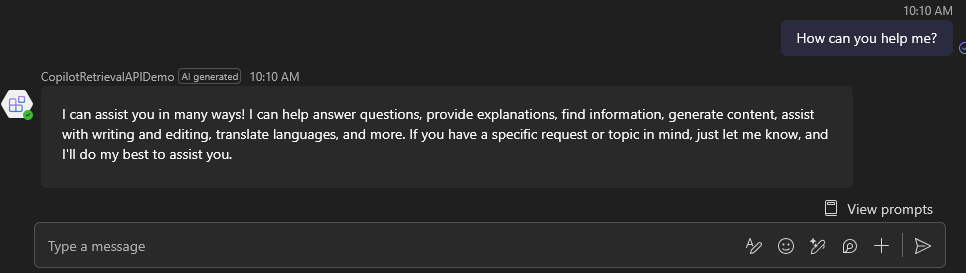
At this point, you should be able to get agent answers from its general knowledge:
Now let’s add some real data coming from Microsoft 365 using the Copilot Retrieval API!
Register function to call the Copilot API
The AI Foundry SDK provides a very useful capability: a way to dynamicaly register custom functions as tool to be called by the LLM. This means we can wire this up with out custom agent, using the user access token to make Microsoft Graph API call on his behalf:
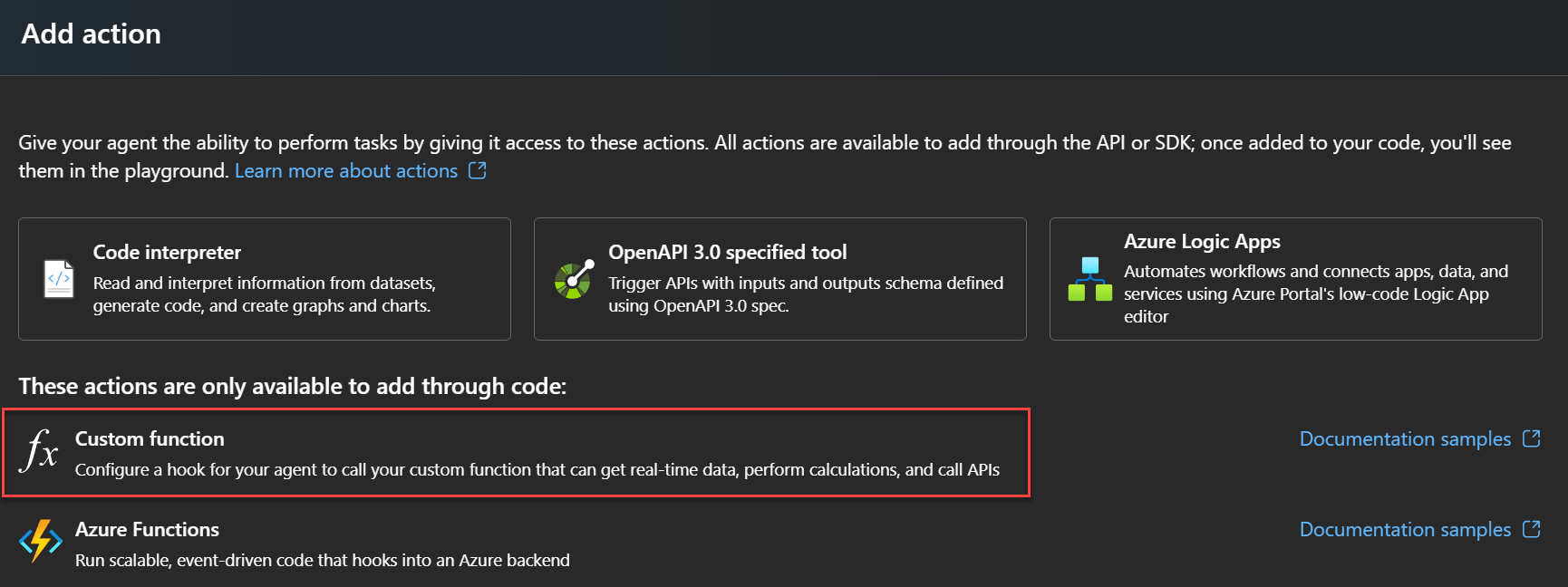
Custom functions can only be programatically registered. There is ‘option to do so.
- Create a
toolexecutor.tsfile and add the following code:
Show code
import { Client } from "@microsoft/microsoft-graph-client";
import { ToolUtility } from "@azure/ai-agents";

export class FunctionToolExecutor {

    private functionTools;
    private graphClient: Client;

    constructor(graphClient: Client) {

        this.getCopilotData = this.getCopilotData.bind(this);

        this.graphClient = graphClient;

        this.functionTools = [
            {
                func: this.getCopilotData,
                ...ToolUtility.createFunctionTool({
                    name: "getCopilotData",
                    description: "Retrieve content for current user",
                    type: "function",
                    parameters: {
                        type: "object",
                        properties: {
                            query: { type: "string", description: "The user original and non modified query" },
                        }
                    }
                } as any)
            }
        ];
    }

    public async getCopilotData(query: string) {

        const response = await this.graphClient.api("/copilot/retrieval").post({
            queryString: query,
            dataSource: "sharepoint, externalItem",
            resourceMetadata: ['title','webUrl'],
            maximumNumberOfResults: 5
        });

        return response.retrievalHits;
    }

    public async invokeTool(toolCall) {
      console.log(`Function tool call - ${toolCall.function.name}`);
      const args = [];
      if (toolCall.function.arguments) {
        try {
          const params = JSON.parse(toolCall.function.arguments);
          for (const key in params) {
            if (Object.prototype.hasOwnProperty.call(params, key)) {
              args.push(params[key]);
            }
          }
        } catch (error) {
          console.error(`Failed to parse parameters: ${toolCall.function.arguments}`, error);
          return undefined;
        }
      }
      const result = await this.functionTools
        .find((tool) => tool.definition.function.name === toolCall.function.name)
        ?.func(...args);
      return result
        ? {
            toolCallId: toolCall.id,
            output: JSON.stringify(result),
          }
        : undefined;
    }

    public getFunctionDefinitions() {
      return this.functionTools.map((tool) => {
        return tool.definition;
      });
    }
}
- Then register the custom function dynamically by updating the agent tools in the
_invokeAgentfunction. We also update the waiting logic to see if the tool has chosen. In that case, you need to manually execute it and send the output to the LLM to continue the process (via thesubmitToolOutputsmethod)
Show code
  private async _invokeAgent(context: TurnContext, token: string) {

    const agentId = process.env["ENV_AZURE_DEPLOY_AGENT_ID"];
    const aiFoundryProjectEndpoint = process.env["ENV_AZURE_DEPLOY_AI_FOUNDRY_PROJECT_ENDPOINT"];

    const credential = new ClientSecretCredential(
        process.env["tenantId"],
        process.env["AZURE_APP_CLIENT_ID"],
        process.env["AZURE_APP_CLIENT_SECRET"],
    );

    const project = new AIProjectClient(aiFoundryProjectEndpoint, credential);
    const agent = await project.agents.getAgent(agentId);
    const thread = await project.agents.threads.create();
    const message = await project.agents.messages.create(thread.id, "user", context.activity.text);

    let graphClient;
    if (token) {
      graphClient = Client.initWithMiddleware({
          authProvider: {
              getAccessToken: async () => {
                  return token
              },
          }
      });
    }

    const functionToolExecutor = new FunctionToolExecutor(graphClient);
    const functionTools = functionToolExecutor.getFunctionDefinitions();

    if (agent) {
        // Register custom tool
        await project.agents.updateAgent(agentId, {
            tools: functionTools
        });
    }

    console.log(`Created message, ID: ${message.id}`);

    let run = await project.agents.runs.create(thread.id, agent.id);
    let toolResponseOutput: any[] = [];

    // Wait for agent processing
    while (run.status === "queued" || run.status === "in_progress") {
      await new Promise((resolve) => setTimeout(resolve, 1000));
      run = await project.agents.runs.get(thread.id, run.id);

      // Determine if a tool should be executed
      if (run.status === "requires_action" && run.requiredAction) {

        console.log(`Run requires action - ${run.requiredAction}`);

        if (isOutputOfType(run.requiredAction, "submit_tool_outputs")) {

            const submitToolOutputsActionOutput = run.requiredAction;
            const toolCalls = submitToolOutputsActionOutput['submitToolOutputs'].toolCalls;
            const toolResponses = [];

            for (const toolCall of toolCalls) {

                if (isOutputOfType(toolCall, "function")) {
                    const toolResponse = await functionToolExecutor.invokeTool(toolCall);
                    if (toolResponse) {
                        toolResponseOutput = JSON.parse(toolResponse.output);
                        toolResponses.push(toolResponse);
                    }
                }
            }

            if (toolResponses.length > 0) {
                run = await project.agents.runs.submitToolOutputs(thread.id, run.id, toolResponses);
                console.log(`Submitted tool response - ${run.status}`);
            }
        }
      }
    }

    if (run.status === "failed") {
        console.error(`Run failed: `, run.lastError);
    }

    console.log(`Run completed with status: ${run.status}`);

    // Retrieve messages
    const messages = await project.agents.messages.list(thread.id, { order: "asc"});

    // Display messages
    const threadMessages = [];
    for await (const m of messages) {
        const content = m.content.find((c) => c.type === "text" && "text" in c);
        if (content) {
            threadMessages.push(m)
        }
    }

    // Get the last message sent by the agent and out put it to the user
    const agentAnswer: string = threadMessages[threadMessages.length-1].content[0].text.value;

    await context.streamingResponse.queueTextChunk(agentAnswer);
    await context.streamingResponse.endStream();
  }
Now, asking for question like “Search my latest edited documents” should trigger the custom function and provide and answer based on retrieved data, including links in the answer:

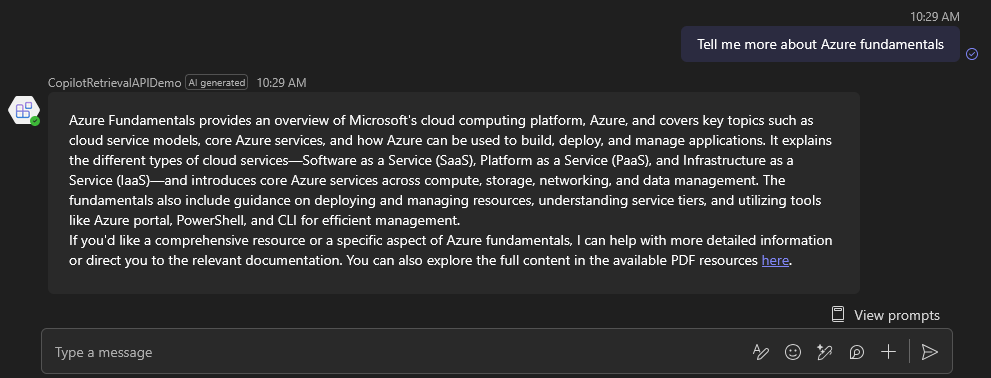
However, as you can see, the links and references and referenced as citations. Let’s fix that.
Manage citations
Using the Microsoft 365 SDK means you have flexibility the UI. For the citations part, we use a custon function to extract links from a Markdown string (as requested in agent system instructions), including title and URL. Then for each of these links, we create a citation object passed to the output stream. You can even pass a text snippet! This way, citations will appear nicely for the users:

Show code
private async _invokeAgent(context: TurnContext, token: string) {
  ...

  const links = Utils.extractMarkdownLinks(agentAnswer);
  const streamingCitations = links.map((link, i) => {

    // Get extracts from the tool output
    const snippet = toolResponseOutput.find((hit) => hit.webUrl === decodeURIComponent(link.url))?.extracts[0]?.text; // Get the first etract matching that URL (basic example)
    const citation: Citation = {
      title: link.title,
      url: link.url,
      content: snippet ? snippet : "",
      filepath: link.url
    };

    return citation;
  });

  await context.streamingResponse.setCitations(streamingCitations);
  await context.streamingResponse.queueTextChunk(Utils.replaceMarkdownLinksWithOrder(agentAnswer));
  await context.streamingResponse.endStream();
}
Finally, we get a Microsoft 365 csutom engine agent using an AI Foundry agent with data retreived from Copilot API!
Conclusion
As we’ve seen, the new Microsoft 365 SDK makes it much easier to create agents, particularly when dealing with authentication scenarios. Using an Azure AI Foundry Agent enables you to manage your models and agents efficiently, while integrating seamlessly with enterprise architecture. Alternatively, you could also leverage frameworks like LangChain — for example, see the OnBoard_D solution.